
Download Respondus LockDown Browser – Secure Online Exam Browser for Schools
Overview: A Secure Solution for Academic Integrity
Respondus LockDown Browser (often shortened to LockDown Browser) is a premium, purpose‑built web browser designed to eliminate cheating during online examinations. Adopted by more than a hundred educational institutions worldwide, the tool creates a locked‑down environment that restricts a student’s ability to navigate away from the test, capture screenshots, or use auxiliary applications. By integrating tightly with leading Learning Management Systems (LMS) such as Blackboard, Canvas, Moodle, and Schoology, the browser offers a seamless experience for both instructors and learners.
The platform’s two‑month free trial allows schools to evaluate its robust security features before committing to an annual license, which is priced based on the number of enrolled students. While the price point can be a hurdle for large districts, the reduction in academic dishonesty and the restoration of confidence in online assessment often justify the investment. The software not only disables common cheating vectors—like task switching, right‑click menus, screen recording, and remote desktop tools—but also enforces a full‑screen mode that forces students to focus solely on the exam content.
In short, Respondus LockDown Browser is a comprehensive, OS‑level security solution that goes far beyond the capabilities of standard browser extensions, making it a top choice for institutions seeking to uphold academic integrity in a digital world.
Key Features & Core Capabilities
- Full‑Screen Lockdown: Exam windows occupy the entire screen, preventing access to other applications or the desktop.
- Browser Function Restrictions: Only forward, back, stop, and refresh are allowed; all other navigation controls are disabled.
- Disable Task Switching: Alt‑Tab, Cmd‑Tab, and other OS shortcuts are blocked, stopping students from opening unauthorized programs.
- Right‑Click and Clipboard Blocking: Prevents copy‑paste actions that could be used to transfer exam content.
- Screen Capture Prevention: Built‑in mechanisms stop screenshots, screen recordings, and screen‑sharing utilities.
- Remote Desktop & Virtual Machine Detection: The browser identifies and disables remote access tools and virtual environments.
- LMS Integration: Seamless single sign‑on (SSO) with Blackboard, Canvas, Moodle, Schoology, and other platforms.
- Two‑Month Free Trial: Institutions can test all features without cost before purchasing an annual license.
- Cross‑Platform Support: Native applications for Windows 10/11 and macOS 10.13+ ensure consistent security across devices.
- Automatic Updates: Regular patches keep the browser ahead of emerging cheating techniques.
Each of these features works together to create a tamper‑proof environment that is difficult for even tech‑savvy students to bypass. Unlike browser extensions that merely hide certain UI elements, LockDown Browser runs as a native application, granting it deep access to the operating system. This level of integration enables the software to block background processes, disable programmable mouse buttons, and prevent JavaScript injection attacks—all common methods used to cheat in online exams. The result is a reliable, institution‑grade solution that protects exam integrity without requiring additional hardware or complex proctoring setups.
Installation, Compatibility, and Day‑to‑Day Usage
Step‑by‑Step Installation Guide
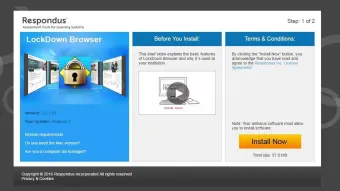
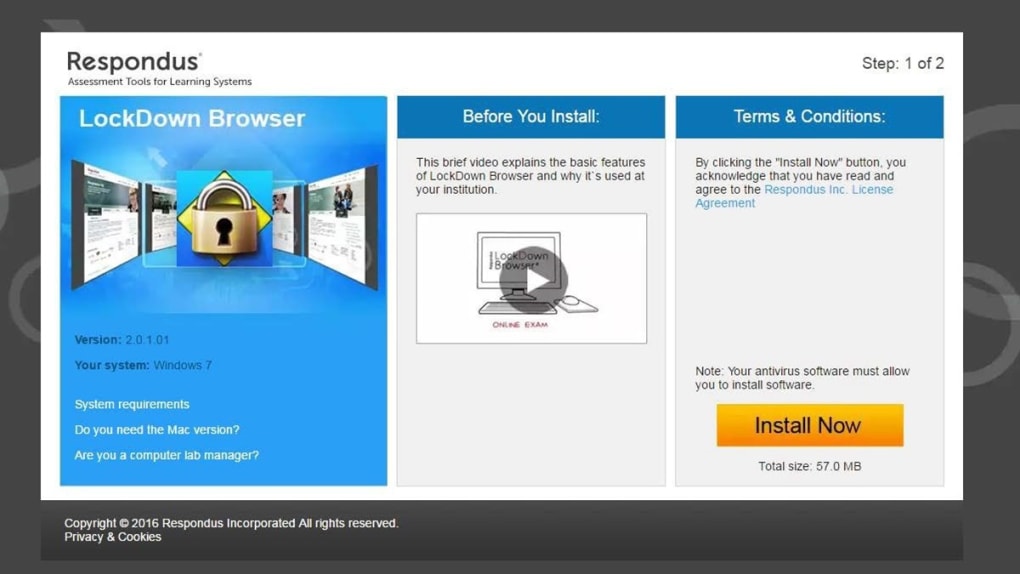
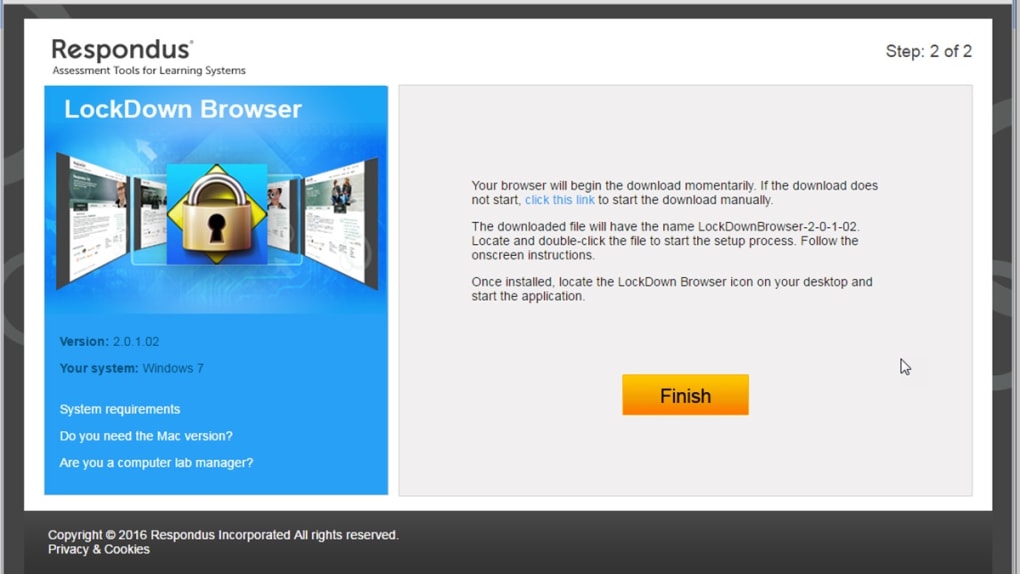
Installing Respondus LockDown Browser is straightforward and can be completed in under ten minutes. First, visit the official Respondus website and select the download link that matches your operating system. For Windows users, an .exe installer is provided; macOS users receive a .dmg package.
After downloading, run the installer and follow the on‑screen prompts—accept the license agreement, choose the installation folder (the default location works for most setups), and let the installer copy the necessary files. Once installation finishes, a shortcut appears on the desktop and in the start menu (or Applications folder on macOS). For institutions that manage devices centrally, the installer can be deployed via Group Policy (Windows) or Apple Remote Desktop (macOS), ensuring every student computer has the browser pre‑installed before the exam period begins.
Configuring the Browser for Your LMS
After installation, administrators must configure the browser to communicate with the chosen LMS. This usually involves entering a secure API key or secret that Respondus provides when you purchase a license. The configuration wizard walks you through linking the browser to Blackboard, Canvas, Moodle, or Schoology. Once linked, the LMS automatically launches LockDown Browser when a protected exam is started, passing a unique session token that validates the user’s identity. Instructors can also set additional parameters—such as whether students may use a calculator, or whether a specific URL is whitelisted for supplemental resources—directly from the LMS’s exam settings page.
Day‑to‑Day Usage for Students and Faculty
For students, the workflow is simple: click the “Start Exam” button in the LMS, and the system launches LockDown Browser in full‑screen mode. The browser displays a clean interface with only the exam content and minimal navigation controls. If a student attempts to press Alt‑Tab, open the Start menu, or use a screen‑capture shortcut, the browser immediately locks the session and records the violation. Faculty members receive real‑time logs that detail any attempts to breach the lockdown, giving them evidence to address potential misconduct. The browser also supports a “Review” mode that lets instructors preview exam settings before publishing, ensuring that all security options are correctly applied.
Supported Operating Systems: Windows 10, Windows 11, macOS 10.13 (High Sierra) and later. Mobile platforms (iOS, Android) are not currently supported, as the full‑screen lockdown requires deep OS integration that is not feasible on most mobile devices.
Pros, Cons, and Frequently Asked Questions
Pros & Cons
- Pros:
- Industry‑leading security that blocks virtually all known cheating methods.
- Native OS integration provides stability and low latency during exams.
- Seamless LMS integration reduces administrative overhead.
- Two‑month free trial lets institutions evaluate value before purchase.
- Automatic updates keep the browser current with emerging threats.
- Cons:
- Annual licensing cost scales with student enrollment, which can be expensive for large districts.
- Only available for Windows and macOS; mobile users must rely on alternative proctoring solutions.
- Occasional crashes on older hardware or when conflicting security software is installed.
- Initial configuration requires coordination between IT and LMS administrators.
FAQ – Your Most Common Questions Answered
Can students use a second monitor while the exam is locked?
No. LockDown Browser detects additional displays and either disables them or blocks any attempt to move the exam window off the primary screen. This prevents students from using a second monitor to view external resources.
What happens if a student’s internet connection drops during the exam?
The browser will automatically pause the exam and display a reconnection prompt. Once connectivity is restored, the student can resume from the exact point where the interruption occurred, preserving exam integrity.
Is there any way to whitelist specific websites for open‑book exams?
Yes. Instructors can configure a whitelist within the LMS exam settings. Only the URLs listed will be accessible; all other navigation remains blocked.
Does the browser collect any personal data from students?
Respondus collects only minimal telemetry required for security monitoring (e.g., timestamps of attempted violations). No personal academic data is stored on Respondus servers; all logs are retained by the institution’s LMS.
Can the software be used with other proctoring tools simultaneously?
Absolutely. Many institutions run LockDown Browser alongside video‑based proctoring services (e.g., ProctorU, ExamSoft). The locked‑down environment complements video monitoring by eliminating on‑screen cheating vectors.
Conclusion & Call to Action
Respondus LockDown Browser stands out as a comprehensive, OS‑level solution for safeguarding online assessments. Its ability to disable a wide array of cheating tactics—from screen capture to remote desktop access—makes it a cornerstone for any institution serious about preserving academic integrity. While the licensing model may require a thoughtful budgeting process, the two‑month free trial provides a risk‑free opportunity to experience the platform’s benefits firsthand. If your school or university relies on Blackboard, Canvas, Moodle, or Schoology, integrating LockDown Browser can dramatically reduce the incidence of dishonest behavior and restore confidence in digital testing.
Ready to protect your exams? Download Respondus LockDown Browser today and start the free trial. Experience the peace of mind that comes with a truly secure exam environment—your students, faculty, and accreditation bodies will thank you.







